
Table of Contents
- Contents
- Overview
- Before You Start
- Link the Sensor with your Equimetrics S-Pro Account
- Using the S-Pro Sensor
- Trouble Shooting
1. Contents
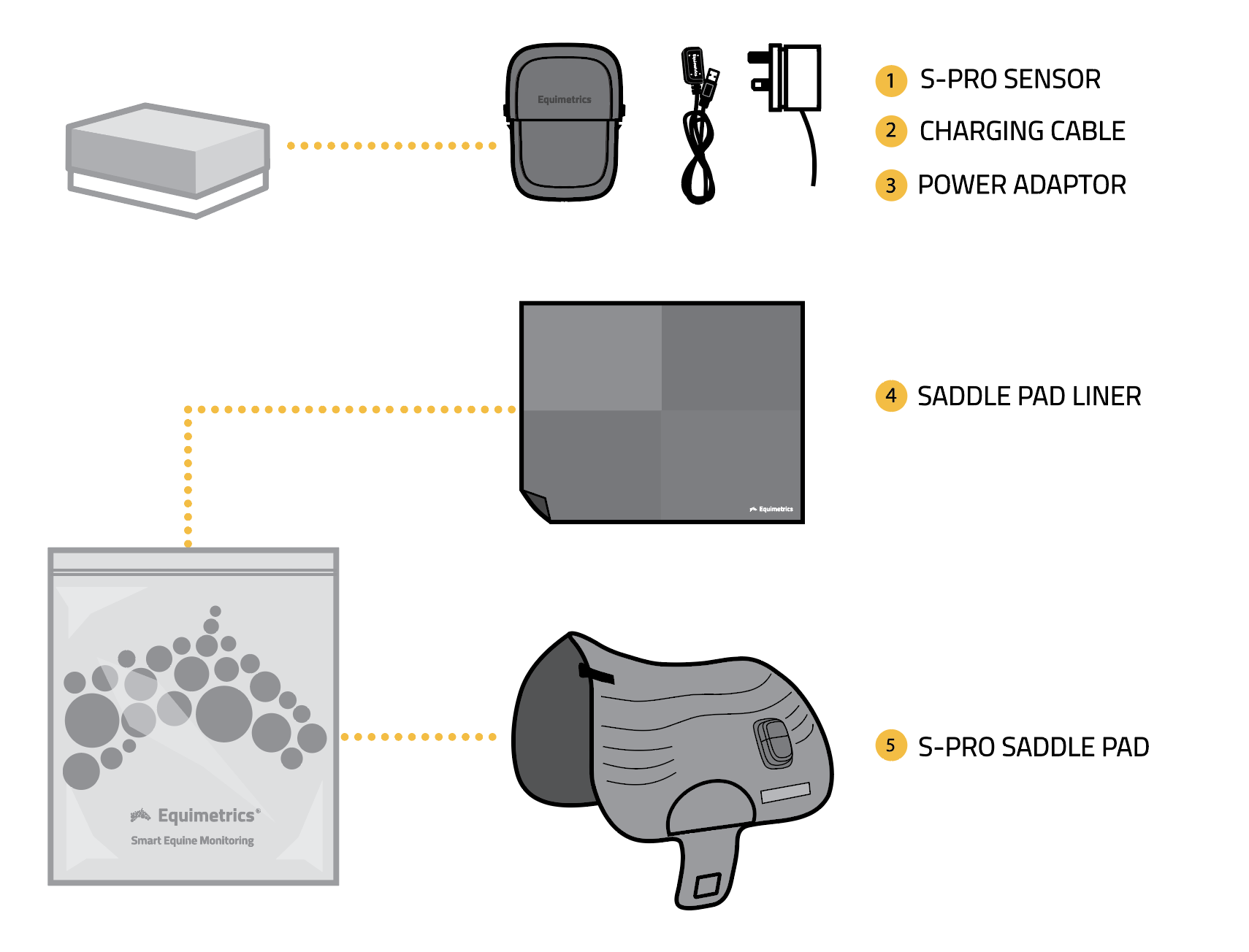
A. S-PRO Sensor
B. Charging Cable
C. Power Adapter
D. Saddlepad Liner
E. S-PRO Saddlepad
2. Overview
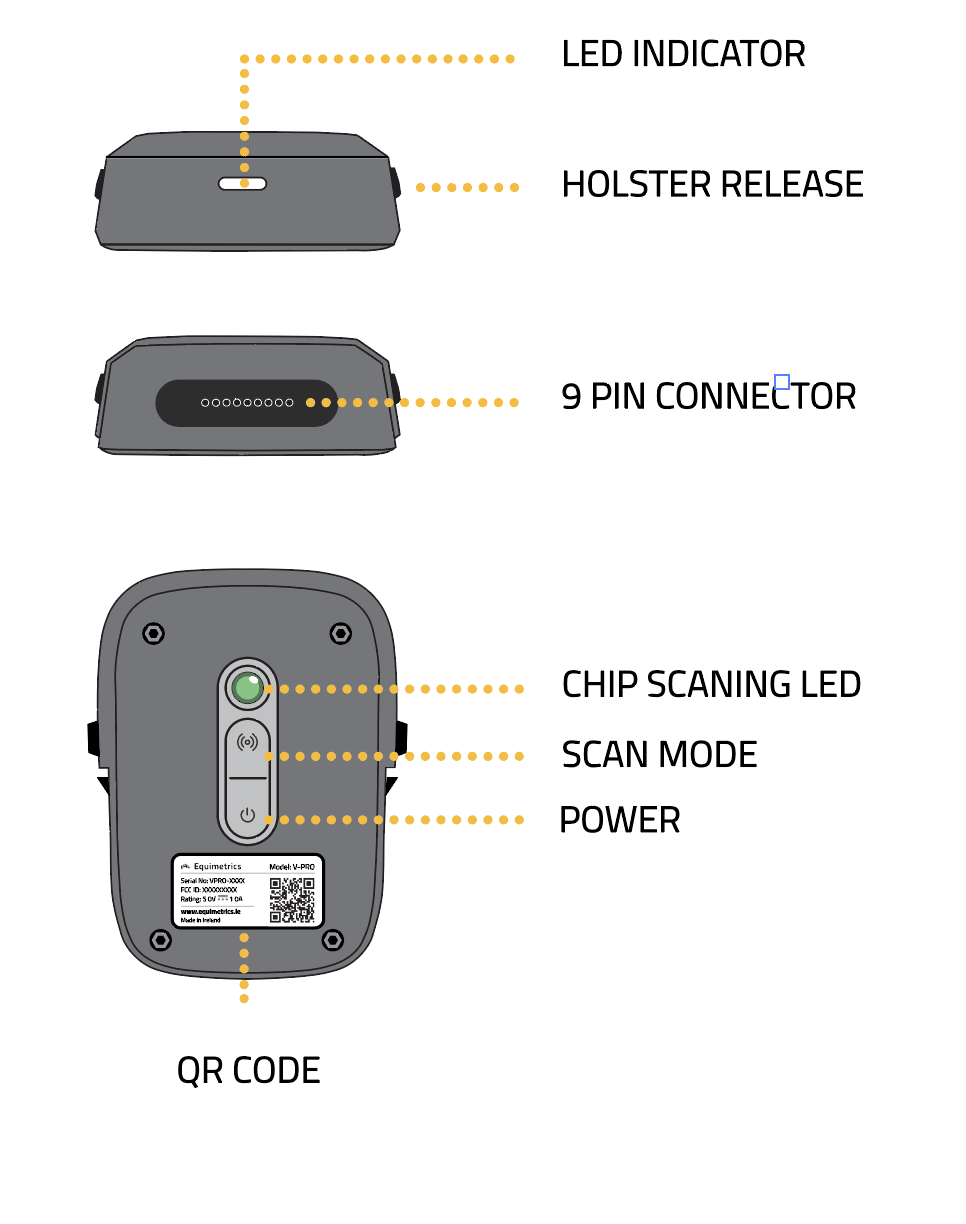
A. LED Indicator
B. Holster Release
C. 9 Pin Connector
D. Chip Scanning LED
E. Scan Mode
F. Power
G. QR Code
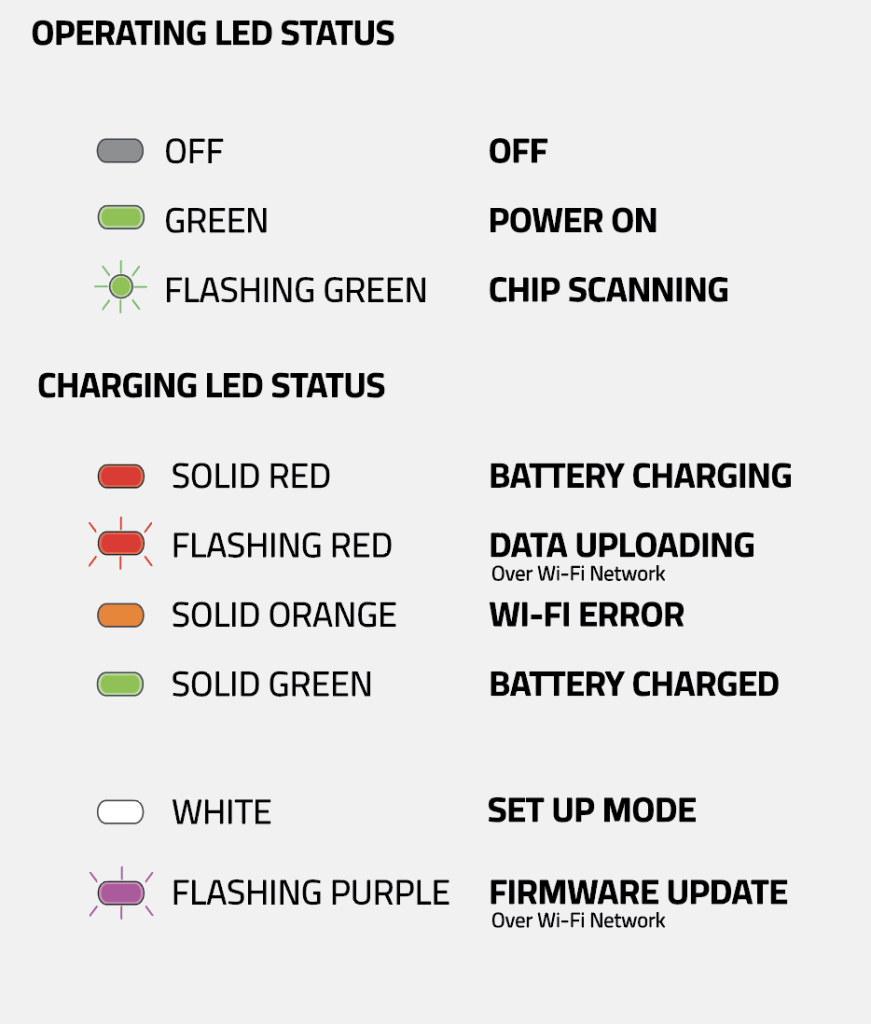
Off – Off
Solid Green – Power On
Flashing Green – Chip Scanning
Pulsing Green – Normal Operation
Solid Red – Charging
Flashing Red – Data Transmission (Over WiFi Network)
Solid Orange – WiFi Network Error
Solid Green – Fully Charged
White – Device Set Up Mode
Flashing Purple – Firmware Update
3. Before you Start
ACCOUNT AND SUBSCRIPTION
To use this product you must have an active Equimetrics account and subscription. If you do not already have an account, visit www.equimetrics.ie and follow the instructions to set one up. If your organisation already has an account, simply follow these instructions to link this product with your account
You will also need to download the latest version of the Equimetrics® S-PRO mobile phone app from the Play Store or App Store.
4. Link the S-PRO Sensor with your Account

CHARGE THE SENSOR
Unbox the S-PRO device and ensure you have all of the components.
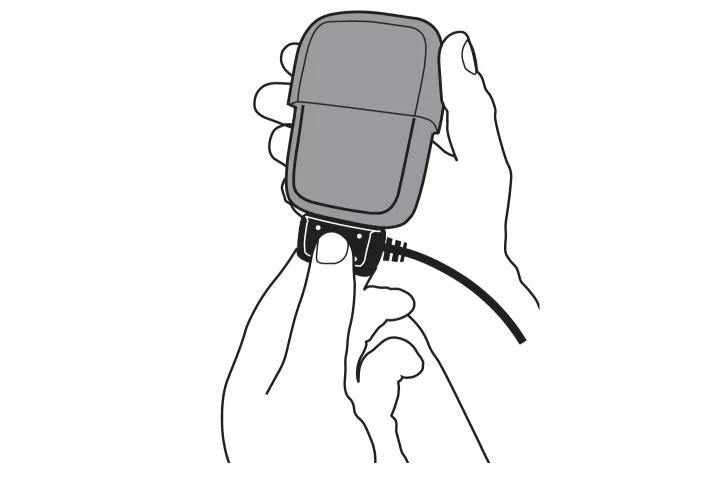
Connect the charging cable provided to the S-PRO sensor as shown, and plug it into a power outlet.
The power outlet should be within range of the WiFi network.
It’s recommended to leave the device connected to the power source, and allow it to fully charge while you complete the set-up process.

LINK THE S-PRO SENSOR WITH YOUR ACCOUNT
While connected to the power supply, the LED will glow white (if not press and hold the Scan Mode and Power button for 3 seconds to enter set-up mode).
On your phone log into the S-PRO app.
From the home screen navigate to the ‘Devices’ section of the main manu and select the ‘Add Device’ option.
Turm on your phone’s Bluetooth and allow the S-PRO app to access Bluetooth devices. Select the new S-PRO sensor from the list of Bluetooth Devices on the app.

ALLOW ACCESS TO YOUR WI-FI NETWORK
Select a Wi-Fi network that will be in range when the device is charging, Wi-Fi will be used to upload data for analysis after each training session.
It will also enable device updates to be installed automatically when available.
Input the correct Wi-Fi passcode and press ‘Submit’ when complete.
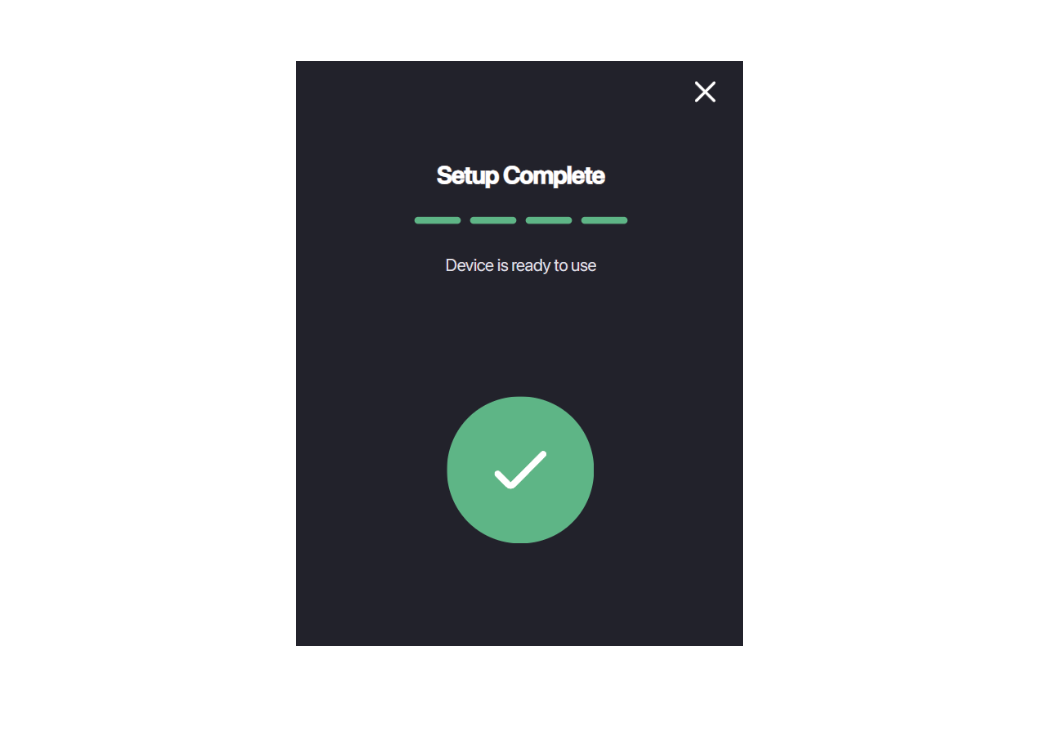
SET UP COMPLETE
Upon successful set-up of your new S-PRO device, you will be presented with the above screen.
When set up is complete the LED will glow solid red to indicate the device is in charging mode.
If a new version of the sensor firmware is available, it will automatically start to download. The LED will flash purple while this is happening. Please do not disconnect from the charger during this process.
5. Using the S-PRO Sensor
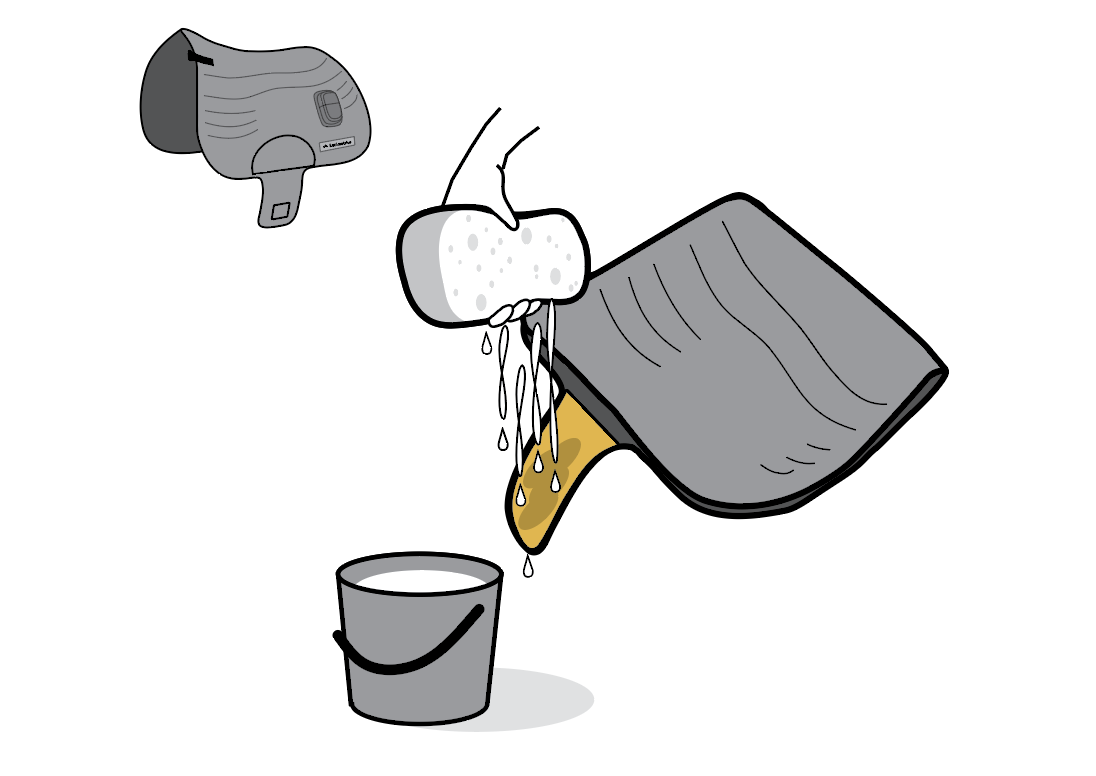
WET THE SENSOR PAD AREA
Remove the S-PRO sensor and saddlepad from its packaging.
The S-Pro saddlepad has an integrated electrode pad which is yellow in colour.
you must thoroughly wet the yellow pad before tacking up the horse. This ensures a good conductive contact with the horses skin during exercise and is essential for heart rate readings.
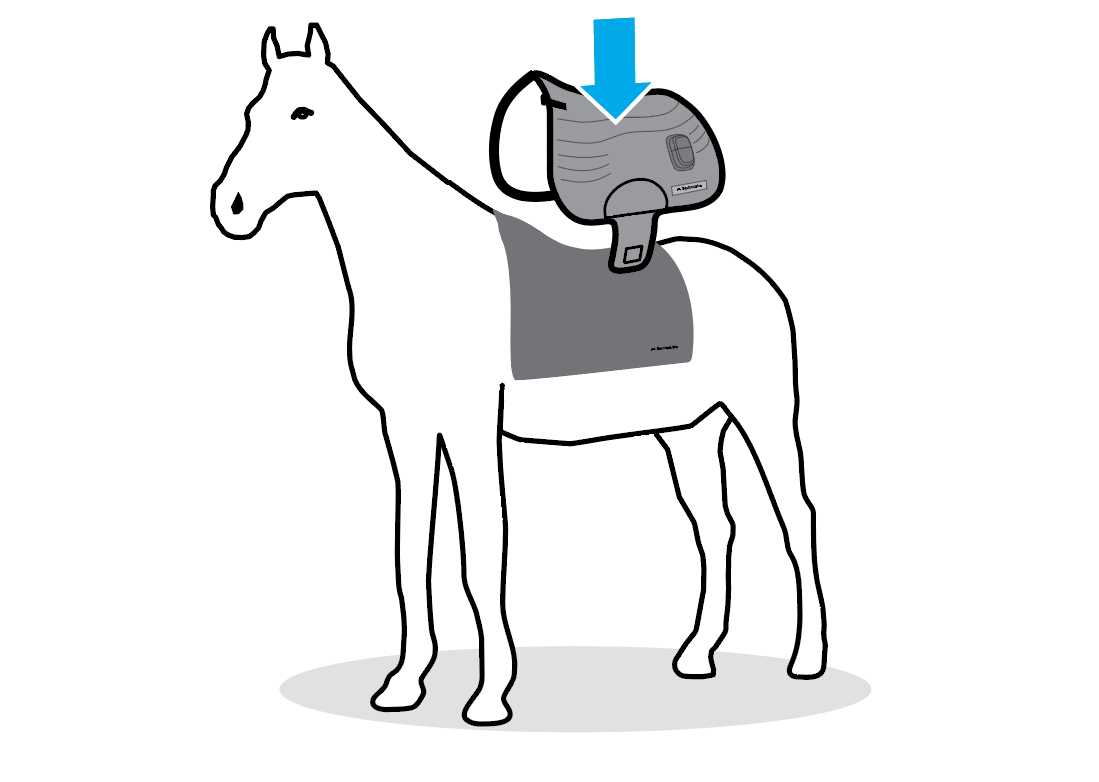
TACK UP THE HORSE
We recommend using a non-slip pad in order to keep the sensor pad in the optimum position for data collection.
Place the saddle pad liner on the horse as shown. The liner is washable and will protect the saddlepad from wear and tear.
Then place the saddlepad on the horse. Make sure the liner does not block the yellow sensor pad from making contact with the horse’s skin. Then continue to tack-up the horse as normal.
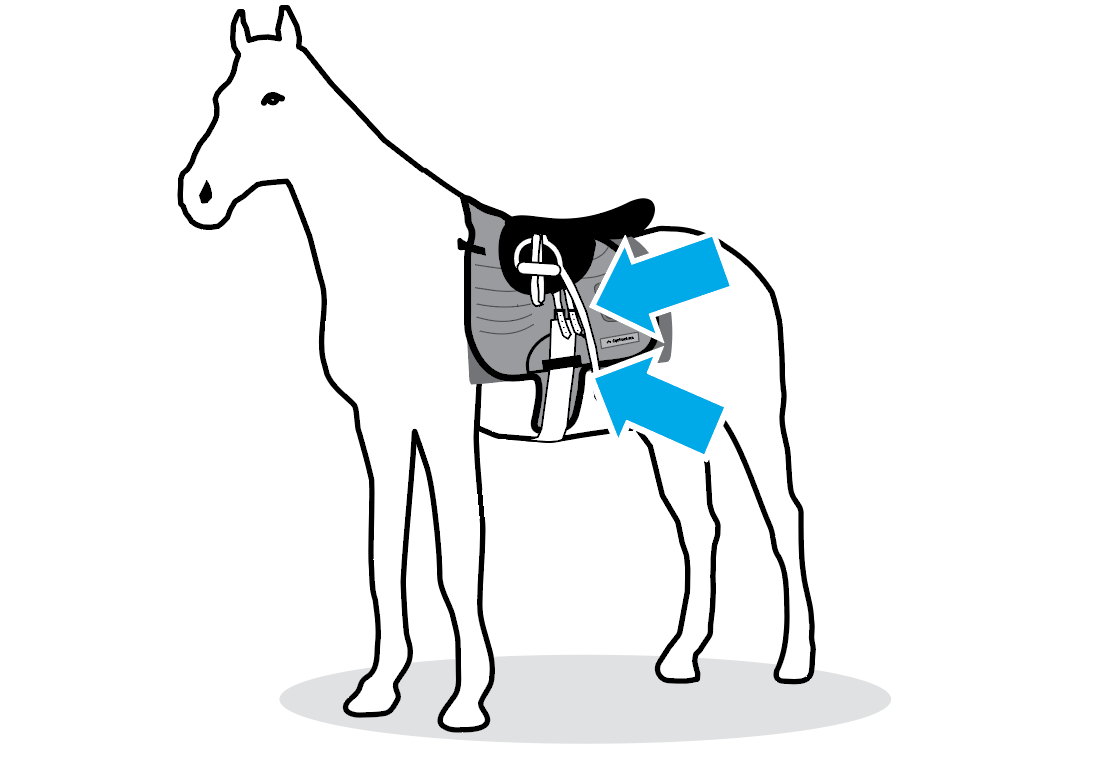
SECURE THE GIRTH STRAP
Ensure the girth strap is fitted directly on top of the sensor pad, with the wet yellow area touching the horse’s skin.
Tighten the girth strap as normal and secure it with the velcro girth loop on the saddle pad.
Ensure that the sensor layer does not become crumpled when the girth is being tightened.
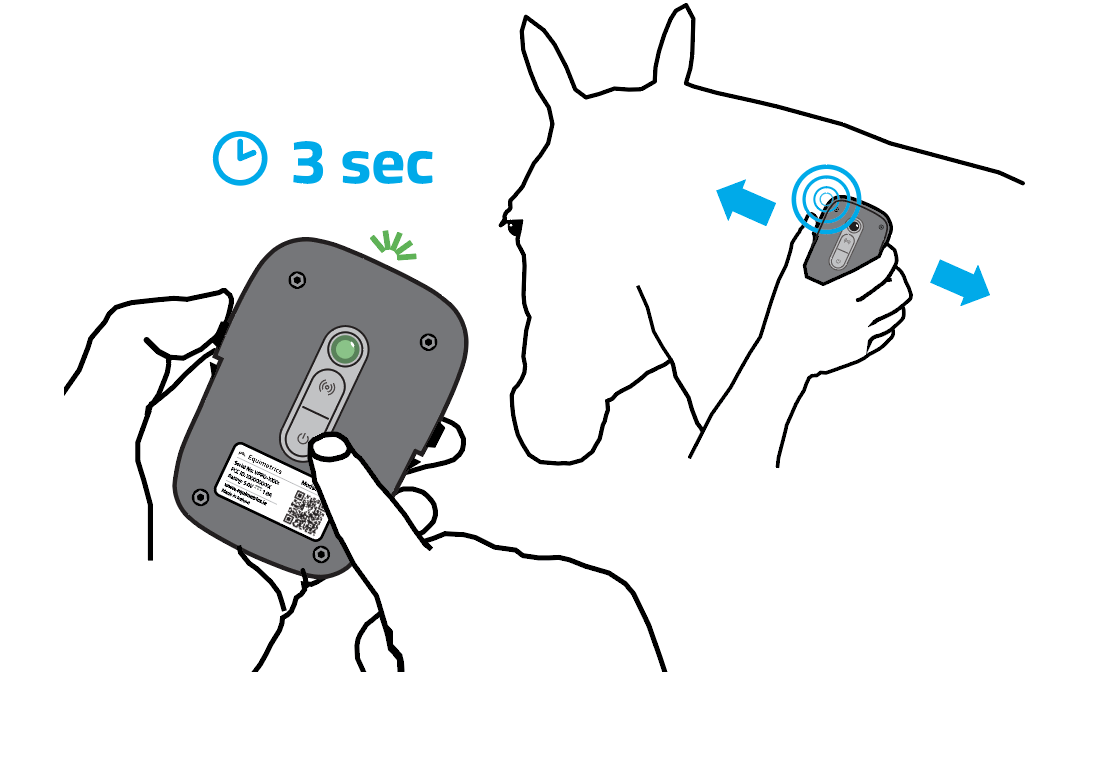
SCAN THE HORSE MICROCHIP
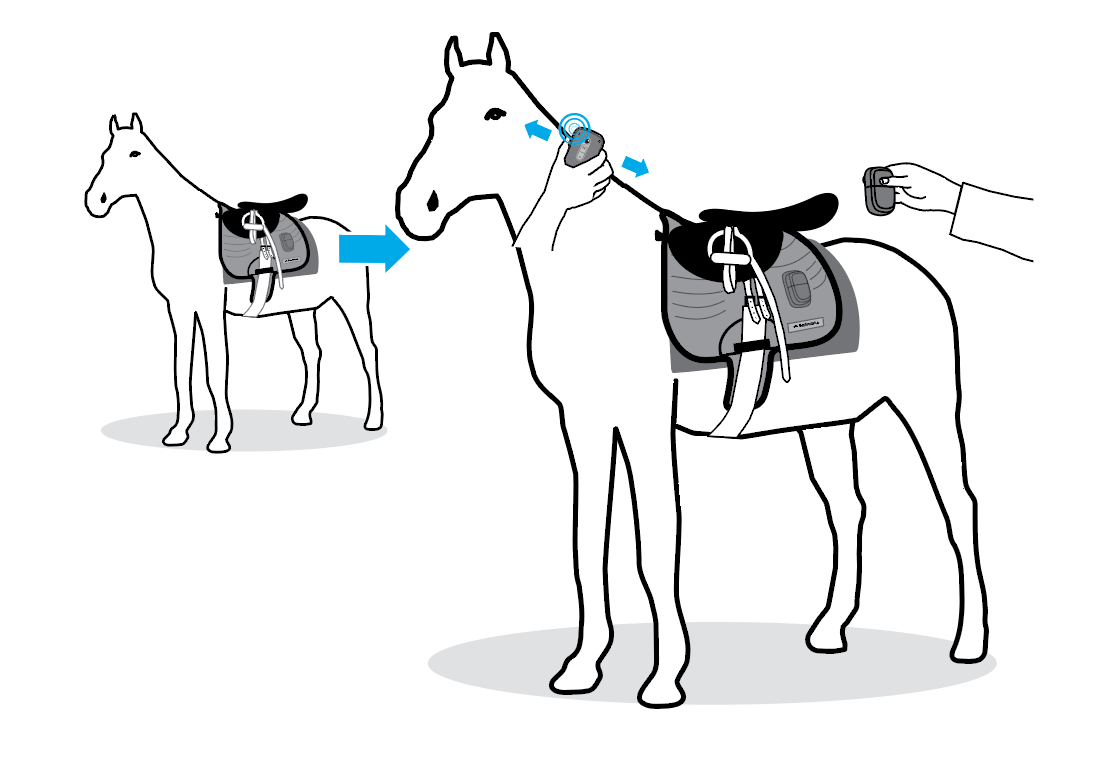
Turn on S-PRO by holding the poser button for 3 seconds, wait until the LED turns green. The chip scanning LED will start to flash to indicate it is in scanning mode.
Hold the device as shown with the LED facing you, and move it slowly up and down against the horse’s neck.
Once the microchip is detected, the device will beep and vibrate and the scanning LED will turn off.
If a microchip cannot be found, or you want to skip this step, press the ‘Scan Bypass’ button once, this will exit scan mode and will start an unidentified monitoring session.
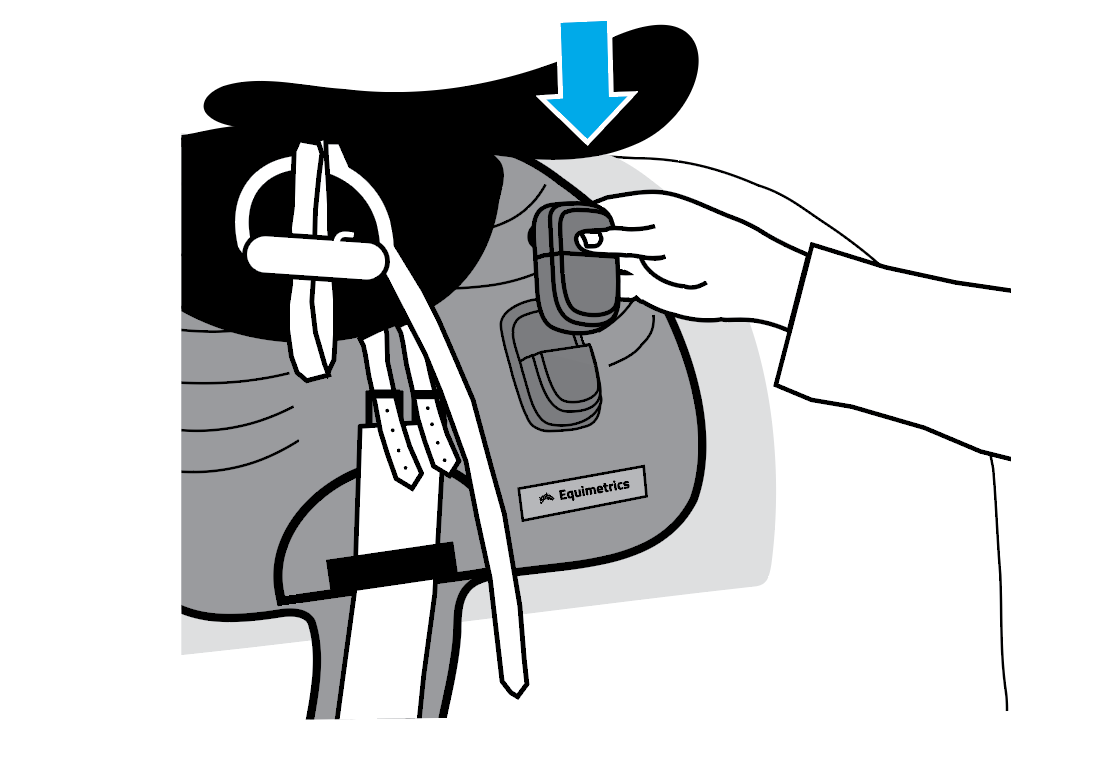
PLACE THE S-PRO SENSOR IN THE SADDLE PAD
The sensor can now be placed into the holster on the S-PRO saddlepad. Check for the green LED to indicate that S-PRO is operating correctly. The LED will pulse in time with the Horse’s heart beat.
The sensor is now recording and will continue to record until it is removed from the saddlepad and switched off, or another horse microchip is scanned.
To capture sufficient heart rate recovery data, the S-PRO sensor should remain on the horse for a full 5 minutes after exercise is complete.
END THE SESSION AND SWITCH TO ANOTHER HORSE
Remove the S-PRO sensor from the saddlepad and switch it off to stop the recording.
To record the next horse, just power it on again and it will re-enter the chip scanning mode. Simply scan the chip, pop it in the saddlepad and go.
You can record multiple sessions in a day provided the battery has enough charge.
UPLOADING DATA TO THE CLOUD
Once the training sessions are complete turn off the S-PRO sensor.
To upload data to the cloud the sensor must be connected to the charging cable and within range of the wi-fi network.
While uploading the data the LED will flash red, it may take several minutes to upload all of the data. Once complete the data will be processed and available in the S-PRO app.
6. TROUBLESHOOTING
NO HEART RATE DATA WAS RECORDED
Ensure that the yellow sensor pad is thoroughly wet and in contact with the horse’s skin during exercise.
If the problem persists, moisten the horses coat beneath the pad for better conductivity.
RECOVERY DATA WAS INCOMPLETE OR MISSING
Do not loosen the girth strap or remove the sensor for at least 5 minutes after completeing exercise.
UNWANTED DATA IS VISIBLE AT THE END OF THE SESSION.
Remember to switch off the S-PRO sensor at the end of each session when you remove it from the horse.
‘NO TRACK FOUND’ ERROR IN THE APP
Set-up the finishing line in the app and reprocess the session data
THE SENSOR WONT CONNECT TO THE WIFI
If the sensor LED will not turn red when connected to the charger, make sure you are within range of the wi-fi network and that the wi-fi is switched on. If the problem presists reprovision the wi-fi network on the sensor.
IF THE S-PRO SENSOR WILL NOT SWITCH OFF
SUn plug the sensor and contact Equimetrics for support.